My Deep Dive into the Wacom Intuos Pro Medium: A Game Changer for Digital Artists?
Hey everyone! If you’re anything like me, you’ve probably spent countless hours staring at your screen, trying to perfect that digital brushstroke, that precise curve, or that intricate detail that just feels… off. For years, I’ve been navigating the world of digital art and design, first with a mouse (bless its heart, it tried), then with a succession of entry-level drawing tablets. They were fine, they got the job done, but I always felt like there was a barrier between my hand and the screen, a slight disconnect that held back my true potential.
I’ve been a creator for as long as I can remember. From doodling in notebooks as a kid to designing websites and illustrating books as an adult, the desire to bring ideas to life has always been a driving force. As my skills grew and my projects became more demanding, I started hitting the limits of my equipment. My old tablet was getting flaky, the pressure sensitivity felt inconsistent, and the tracking wasn’t as precise as I needed for professional work. I found myself spending more time correcting mistakes made by my tools than actually creating.
It was time for an upgrade, a serious one. I wanted something that felt like a natural extension of my hand, a tool that would disappear into my creative flow rather than constantly remind me of its presence. After doing a ton of research, watching countless reviews, and bugging every digital artist friend I knew, one name kept coming up: Wacom. And specifically, the Wacom Intuos Pro Medium.
Wacom has always been *the* name in professional drawing tablets, a bit like Kleenex for tissues, you know? But for a long time, the price point kept me from taking the plunge. This time, though, I was ready to invest in my craft. I was looking for reliability, precision, and a seamless workflow that would elevate my digital art and design projects. I needed a tablet that could handle everything from detailed character illustrations to complex photo manipulations and even some basic 3D sculpting. I also wanted something durable, something that felt like it was built to last through countless creative sessions.
So, I took the leap. If you’re curious about upgrading your digital workspace or just starting out and want to skip the beginner phase entirely, stick around. I’m going to share everything about my experience with the Wacom Intuos Pro Medium, from the moment it landed on my doorstep to how it’s transformed my daily creative grind. This isn’t just a review; it’s a look into how a truly professional tool can make a world of difference. You can check out the official details and maybe even grab one for yourself right here: Visit Official wacom intuos pro medium Website Now.
Why the Wacom Intuos Pro Medium Caught My Eye
Choosing the “Pro” line was a no-brainer for me. I needed the extra features, the superior pen technology, and the overall professional-grade build. But why “Medium”? This was a more considered decision. I work on a reasonably sized desk, but space is still a commodity. The large felt like it might be *too* large, potentially forcing me to stretch my arm uncomfortably, which can lead to fatigue over long sessions. The small, while portable, seemed like it would cramp my style for larger, more gestural strokes, especially since I often work on a dual-monitor setup.
The Wacom Intuos Pro Medium felt like the Goldilocks zone. It offers a generous active drawing area (8.7 x 5.8 inches, to be exact) without hogging my entire desk. It’s big enough for broad strokes and fluid movements, yet compact enough to remain comfortable and not feel cumbersome. I also considered my workflow: I often switch between detailed close-up work and general compositional planning. The medium size provides the perfect balance for both, allowing me to draw from the elbow for expressive lines and from the wrist for fine details.
Another significant factor was the Pro Pen 2. I’d heard whispers, almost legends, about its sensitivity and precision. My previous tablets had okay pens, but they often felt plasticky, with a noticeable lag. The promise of 8,192 levels of pressure sensitivity and tilt recognition was incredibly enticing. As someone who relies heavily on expressive linework and subtle shading, this was a massive selling point. I wanted my digital brushes to respond exactly as a real brush or pencil would, and the Wacom Intuos Pro Medium seemed to offer just that.
Unboxing and Those First Moments: Quality You Can Feel
Opening the box for my Wacom Intuos Pro Medium was an experience in itself. From the moment I lifted the lid, I could tell this wasn’t just another gadget. Everything felt premium. The packaging was sleek, minimalist, and protective, hinting at the quality within.
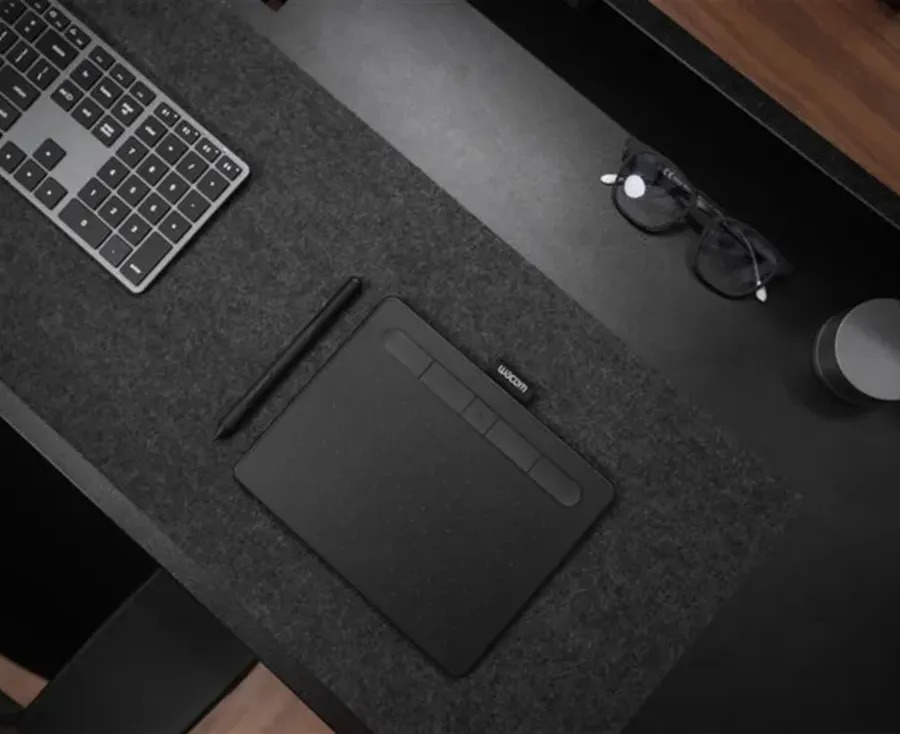
Taking the tablet out, the first thing that struck me was its thinness and solid construction. It’s incredibly slender, yet it has a substantial, durable feel to it. The dark, almost black, finish with the subtle speckles gives it a sophisticated look that fits perfectly in any professional setup. There’s no flex or creakiness; it’s a solid piece of hardware. The edges are gently rounded, making it comfortable to rest my hand on when not actively drawing.
The active surface itself has a lovely, slightly textured feel. It’s not perfectly smooth like glass, which is a good thing – it mimics the slight resistance you’d get from paper, providing a more natural drawing experience. This was a huge relief, as one of my pet peeves with cheaper tablets was their slick, almost glassy surfaces that made drawing feel like trying to write on ice.
Then there’s the Pro Pen 2. It’s a beautifully designed piece of kit. It’s slightly thicker than a standard pencil, with a comfortable ergonomic grip. It feels weighty enough to be substantial but not so heavy that it causes fatigue. The two customizable buttons are perfectly placed for easy access without accidental presses. The pen stand is also a nice touch – a solid, heavy base that keeps the pen upright and safe on my desk, and it cleverly houses extra nibs and a nib removal tool. This attention to detail immediately set the Wacom Intuos Pro Medium apart.
Setting Up: From Box to Brushstroke
One of my initial concerns with any new piece of tech is always the setup process. Will the drivers be a nightmare? Will it play nice with my existing software? Thankfully, Wacom has made this incredibly straightforward.
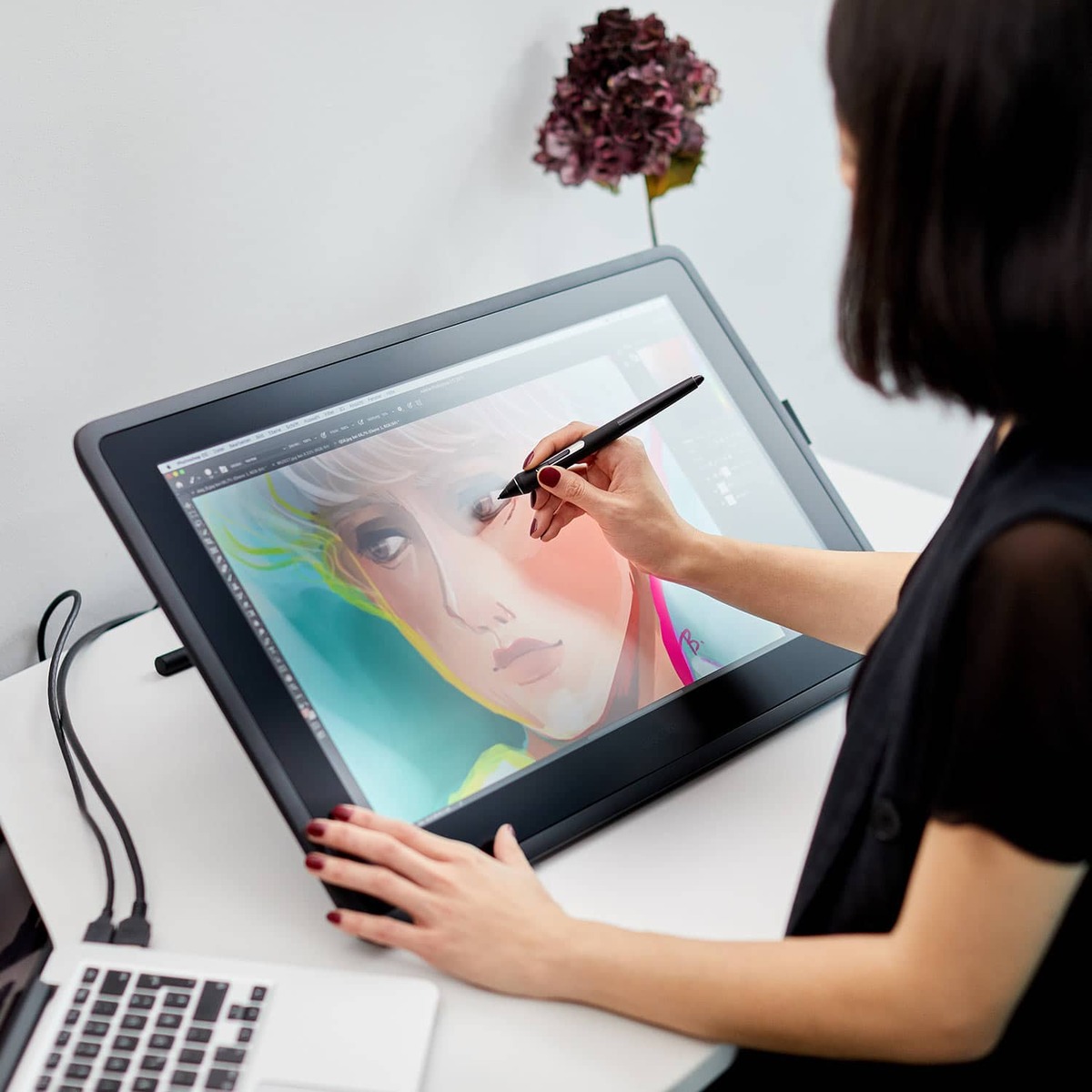
I simply connected the Wacom Intuos Pro Medium to my computer via USB (it comes with a good quality, long cable), downloaded the latest drivers from the official Wacom website, and within minutes, I was up and running. The installation was smooth, no confusing prompts or unexpected reboots. The Wacom Desktop Center software is intuitive and well-designed, allowing for deep customization of the tablet and pen.
This is where the magic really begins. I could immediately configure the eight ExpressKeys along the side of the tablet, mapping them to my most-used keyboard shortcuts in Photoshop, Illustrator, and Clip Studio Paint. Undo, redo, brush size increase/decrease, zoom in/out – you name it, I mapped it. The Touch Ring, another fantastic feature, also allows for multiple functions to be cycled through (zoom, canvas rotation, layer selection, brush flow, etc.), controlled by a simple finger swipe. These customizations truly make the Wacom Intuos Pro Medium *my* tablet, tailored to *my* specific workflow. The software even allows for application-specific settings, meaning my ExpressKeys can do one thing in Photoshop and something completely different in Blender, automatically switching as I change programs. This level of personalization drastically cuts down on trips to the keyboard, keeping my focus squarely on the canvas.
The Heart of the Matter: Performance and Daily Workflow
Now, let’s talk about where the Wacom Intuos Pro Medium truly shines: its performance in daily use.
The Pro Pen 2: A Digital Extension of My Hand
This is the crown jewel of the Wacom Intuos Pro Medium. The Pro Pen 2 is simply phenomenal. The 8,192 levels of pressure sensitivity are not just a number on a spec sheet; they translate into an incredibly nuanced and responsive drawing experience. Whether I’m sketching a faint preliminary line or laying down a bold, opaque stroke, the pen reacts with astounding accuracy to the slightest change in pressure. It’s like switching between a soft lead pencil and a heavy charcoal stick, all with the same tool.
The tilt recognition is another game-changer. For artists who use brushes that respond to tilt (like calligraphic pens or airbrushes), this feature adds an unparalleled layer of realism and control. I can angle the pen just like I would a real brush to get broader, softer strokes or sharp, precise lines. There’s virtually no parallax or lag, even with complex brushes and large canvas sizes. The cursor follows the pen tip almost instantaneously, creating a truly seamless connection between my hand movements and the digital output. It feels natural, intuitive, and most importantly, it feels *right*. My hand doesn’t have to “think” about how to translate its movements; it just moves, and the digital line appears.
The pen comes with several interchangeable nibs – felt, flex, and standard. I personally prefer the felt nibs as they offer a little more drag, enhancing that paper-like feel, but it’s great to have options to suit different preferences and drawing styles.
That Glorious Surface Texture
I briefly mentioned the surface texture earlier, but it deserves more attention. The matte finish isn’t just for aesthetics; it provides a subtle friction that makes drawing on the Wacom Intuos Pro Medium incredibly satisfying. It’s enough to give you control and prevent the pen from sliding around too easily, but not so much that it feels rough or abrasive. It perfectly balances the glide and resistance needed for precise work and fluid strokes. This “tooth” means I’m not constantly fighting a slippery surface, leading to much more confident and accurate lines. It genuinely feels like drawing on quality paper, which, for a traditional artist transitioning to digital, is a huge psychological comfort.
ExpressKeys and Touch Ring: My Workflow Superchargers
These customizable features on the Wacom Intuos Pro Medium are not just nice-to-haves; they are absolutely essential for a streamlined workflow. The eight ExpressKeys, as I said, can be mapped to pretty much any command or shortcut. I’ve got them set up for Undo, Redo, Zoom In/Out, Flip Canvas, Eyedropper, and specific brush toggles. This means my left hand stays on the tablet, rarely needing to stray to the keyboard, allowing me to maintain focus.
The Touch Ring is equally brilliant. With four customizable functions that you can cycle through with a button press, I’ve got mine set to control brush size, canvas rotation, zoom, and layer opacity. A simple circular swipe changes the value, and the LED lights around the ring give visual feedback on which function is active. This eliminates so much tedious menu navigation and hotkey juggling. It’s intuitive, efficient, and once you get used to it, you’ll wonder how you ever managed without it. These controls truly integrate the physical tablet into the digital environment, making it feel less like an external device and more like an integral part of my creative process.
The “Medium” Sweet Spot: Size Matters
Revisiting the size choice, the Wacom Intuos Pro Medium truly hits the sweet spot for me. The active area is large enough that I don’t feel cramped, allowing for natural, sweeping arm movements, which are crucial for dynamic poses and fluid compositions. Yet, it’s not so large that it feels unwieldy on my desk or causes me to overstretch my arm. It occupies just the right amount of space, leaving room for my keyboard and other peripherals without making my setup feel cluttered.
For someone using a single monitor, it provides excellent one-to-one mapping for comfortable cursor control across the entire screen. For my dual-monitor setup, I can either map it to one screen or across both, and even then, the medium size provides enough resolution for precise navigation without feeling like I’m moving a tiny cursor across a vast expanse. It’s the perfect balance of workspace and ergonomic comfort.
Going Wireless: Bluetooth Freedom
The Wacom Intuos Pro Medium offers Bluetooth connectivity, which is a fantastic feature. While I often prefer a wired connection for absolute zero latency (especially during crucial deadlines), the wireless option has been surprisingly reliable and liberating. It’s perfect for sketching on the couch, or for moving the tablet around my workspace without worrying about cable management. The battery life is also impressive, lasting for hours on a single charge. It automatically disconnects and goes to sleep when not in use, preserving power. When it’s time to charge, I just plug in the USB cable, and it works as a wired tablet while topping up the battery. The flexibility this offers cannot be overstated.
If you’re ready to experience this level of creative freedom and precision, don’t hesitate. Head over to the official site and explore the possibilities. Visit Official wacom intuos pro medium Website Now.
My Projects with the Wacom Intuos Pro Medium: What I’ve Created
Since integrating the Wacom Intuos Pro Medium into my workflow, I’ve noticed a significant boost in my productivity and, more importantly, the quality of my output.
For digital painting, it’s a revelation. In Photoshop and Clip Studio Paint, the pressure sensitivity allows for incredible control over brush opacity, size, and flow. I can build up layers of color with delicate glazes or lay down thick impasto strokes, all with the nuance of traditional media. Blending colors feels smoother, and the ability to vary line weight with ease has made my character illustrations much more dynamic and expressive. I’ve found myself experimenting with more intricate textures and subtle lighting effects because I now have the precision to pull them off.
Photo editing in Lightroom and Photoshop has also become much more intuitive. Masking, dodging, and burning specific areas with the pen feels like painting directly onto the image, offering a level of control that’s simply impossible with a mouse. Retouching skin, selecting intricate hair details, or creating complex composite images is faster and far more accurate. The tilt function even comes in handy for certain brushes that respond to pen angle, allowing for more organic brushwork when blending or adding effects.
Even for graphic design in Illustrator, where precision is paramount, the Wacom Intuos Pro Medium excels. Drawing organic shapes, manipulating anchor points, or creating custom typography feels much more natural. The ability to quickly sketch out ideas directly in Illustrator rather than relying on paper and scanning has streamlined my ideation process immensely. For 3D work in Blender, navigating the viewport and sculpting organic models feels incredibly fluid. The pressure sensitivity allows for fine control over the strength of sculpting brushes, making the process of shaping digital clay feel remarkably tactile.
What Others Are Saying: A Glimpse at Community Feedback
While my personal experience has been overwhelmingly positive, I know it’s important to see what others in the creative community think. I frequently browse forums and product pages, and the sentiment around the Wacom Intuos Pro Medium is consistently strong. Here are a few snippets of what I’ve seen other users share:
* “I upgraded from an older Intuos and the Pro Pen 2 is just a dream. The accuracy and how responsive it is truly helps my hand feel more connected to my artwork. Worth every penny for serious artists.”
* “As a graphic designer, the ExpressKeys and Touch Ring have revolutionized my workflow. I barely touch my keyboard now. The medium size is also perfect for my dual-monitor setup; it doesn’t take up too much space but gives me plenty of drawing room.”
* “The surface texture on the Intuos Pro Medium feels so natural, almost like drawing on high-quality paper. My lines have become so much more confident, and I’m not fighting a slippery surface anymore. It’s just a fantastic tool.”
* “I travel a lot for work, and the Bluetooth connectivity of my Wacom Intuos Pro Medium has been a lifesaver. I can work from anywhere without dealing with extra cables, and the battery life holds up really well for long sessions.”
These comments mirror my own feelings and confirm that the key strengths of the Wacom Intuos Pro Medium – the pen, the surface, the customization, and the practical size – resonate deeply with a broad spectrum of digital creatives.
My Takeaways: The Good, The Great, and The “Could Be Better”
No product is absolutely perfect for everyone, but the Wacom Intuos Pro Medium comes incredibly close for my needs.
What I Absolutely Adore
* **The Pro Pen 2:** This is the absolute star. Its precision, pressure sensitivity, tilt recognition, and comfortable design make it an unparalleled tool for digital creation. It feels like a natural extension of my hand.
* **Superior Build Quality:** The tablet feels robust, premium, and durable. It’s thin but solid, and it just looks great on my desk.
* **Customization Powerhouse:** The ExpressKeys and Touch Ring, combined with Wacom’s intuitive software, allow for an incredibly personalized and efficient workflow. I spend less time fumbling with shortcuts and more time creating.
* **Natural Drawing Surface:** The textured surface makes drawing feel organic and satisfying, providing just the right amount of friction.
* **Wireless Freedom:** Bluetooth connectivity works flawlessly, offering convenience and reducing cable clutter.
* **Optimal Medium Size:** For my desk space and creative needs, the medium size is perfect. It offers ample drawing room without being cumbersome.
Things to Consider
* **Price Point:** Let’s be real, Wacom tablets, especially the Pro line, are an investment. They’re not cheap. However, considering the quality, features, and longevity, I genuinely believe it’s worth it for serious hobbyists and professionals. It’s an investment in your craft.
* **Nibs and Surface Wear:** Because of that lovely textured surface, the nibs on the Pro Pen 2 will wear down over time. Wacom provides spares, and replacements are readily available, but it’s an ongoing cost to consider. Similarly, the surface itself can show some wear marks over years of heavy use, though it’s largely cosmetic and doesn’t affect performance. For some, the texture can also feel a bit abrasive on their pen nibs, leading to quicker wear. It’s a trade-off for that paper-like feel.
* **Learning Curve for Beginners:** While Wacom’s software is user-friendly, transitioning from a mouse to a pen tablet can take some getting used to, especially mapping hand-eye coordination for drawing on a surface while looking at a screen. But trust me, the payoff is immense.
Who Is The Wacom Intuos Pro Medium For?
In my opinion, the Wacom Intuos Pro Medium is ideally suited for:
* **Professional Digital Artists & Illustrators:** If your livelihood depends on your digital creations, this tablet provides the precision, reliability, and workflow enhancements you need.
* **Graphic Designers:** For creating logos, illustrations, or precise vector art, the control offered is invaluable.
* **Photographers & Retouchers:** The ability to make incredibly accurate selections and adjustments makes post-processing a breeze.
* **Animation & 3D Artists:** Essential for character design, storyboarding, and sculpting digital models.
* **Serious Hobbyists:** If you’re truly dedicated to improving your digital art and are ready to invest in a tool that won’t hold you back, this is an excellent choice. It offers a significant leap in capability over entry-level tablets.
If you fall into any of these categories and are looking for a reliable, high-performance tool that will genuinely enhance your creative output, you owe it to yourself to consider the Wacom Intuos Pro Medium. You can find more details and make your purchase directly from the official store here: Visit Official wacom intuos pro medium Website Now.
Living with It: Durability and Long-Term Use
I’ve had my Wacom Intuos Pro Medium for a good while now, and it’s been a workhorse. It sits on my desk for hours every day, enduring countless strokes, presses, and swipes. Despite this heavy usage, it still looks and performs almost as good as new.
The build quality truly shines in the long run. There are no loose parts, no degradation in performance. The ExpressKeys still click satisfyingly, the Touch Ring spins smoothly, and the Pro Pen 2 maintains its legendary precision. The USB-C port is sturdy, and the Bluetooth connection remains rock solid.
As mentioned, the pen nibs do wear down, especially if you have a heavy hand or prefer the felt nibs, but replacements are easy to swap in. The drawing surface itself has developed a very slight sheen in the areas I use most frequently, but it hasn’t lost its texture or responsiveness in any meaningful way. It’s a testament to Wacom’s engineering that these devices are built to withstand the rigors of professional creative work day in and day out. This isn’t a tablet you’ll be replacing in a year or two; it’s a long-term investment that pays dividends in reliability and performance.
Final Verdict: Is It Worth the Investment?
Absolutely. Without a shadow of a doubt, the Wacom Intuos Pro Medium has been one of the best investments I’ve made in my creative career. It’s more than just a drawing tablet; it’s a creative partner that removes barriers between my imagination and the digital canvas. The precision, the intuitive design, the customization, and the sheer joy of using the Pro Pen 2 have transformed my workflow and allowed me to push my artistic boundaries further than I thought possible.
If you’re serious about digital art, design, or any creative endeavor that benefits from precise hand-eye coordination and pressure sensitivity, and you’re ready to step up from entry-level tools, the Wacom Intuos Pro Medium is the way to go. It offers professional-grade performance in a perfectly balanced size. It’s reliable, durable, and genuinely enhances the creative experience.
Don’t let subpar tools limit your potential. Invest in a device that empowers your creativity and allows your true skills to shine through. Trust me, your art (and your sanity) will thank you.
Ready to make the leap and elevate your digital creations? You can find all the details and purchase your own Wacom Intuos Pro Medium directly from the official store. Go ahead, treat yourself to the best creative tool out there! Visit Official wacom intuos pro medium Website Now.


You May Also Like

My Experience with Social Goods: Shopping with Purpose and Impact

Unlocking My Best Hair Days: A Deep Dive into the World of Kevin Murphy